Dev Log
Simple Level Save and Load System (Unity Editor)
One of the best things about game jams is the creativity that they require or even force. With such little time to make a game the developer has to get creative to save time. In my case with “Where’s My Lunch?” creating levels was a big bottleneck!
Creating individual scenes for each level was out of the question and frankly, I’m not convinced it would be a good plan even if I had more time. What happens if I need to change the UI? What if I want to redesign the layout? Sure I could use prefabs, but how much easier would it be to just have one scene and then load in the parts for different levels? No juggling scenes. No “scene manager.” Just simple data files with all the needed info for a given scene.
Yes! That’s the way I want to do it.
And that’s how the level save and load system for “Where’s My Lunch?” was created. Now to be SUPER CLEAR, the basic setup does NOT save data during runtime. Not even close. This can only save data in the editor. But! It can load data both in the editor and during runtime. Which for my purposes made it pretty perfect and I suspect pretty perfect for lots of projects.
Looking for a save/load system that works at run time? Stay with me. I use the asset “Easy Save” to convert my system rather painlessly to do just that!
The overarching idea is that the scene is made up of various gameObjects (duh!). The code on each object stays the same from level to level and the only real difference between levels is the positioning and the number of objects…
Which I think maybe true of an awful lot of games.
The Big Idea

So all the system needs to do is record the position and the type of object. The data for each object then gets stored in a list. This list can be easily accessed to load the level whenever we need it. If that list then gets stored on a scriptable object we’ll get a nice project asset for each level in the game.
Pretty simple and pretty slick!
Or at least I think so.
Finding and Saving Objects
To keep things easy I created a monobehavior that can go on every scene object that needs to be saved or loaded. The class has just one field, which is an enum that identifies what type of object it is. This enum will be used by the loading function to locate the correct prefab.

Then all that needs to happen is to search the scene for that type of object and we get a list (array) of objects to be saved. This all happens in the “Level Manager” class. Or specifically in the “Save Level” function.
Do note that this function is never called because I’m using Odin Inspector to create buttons that can be used from the editor. If you haven’t heard of Odin (full disclosure, I work for them) it’s a pretty amazing tool and in this case, is saving me a lot of time by not having to create a custom inspector script!
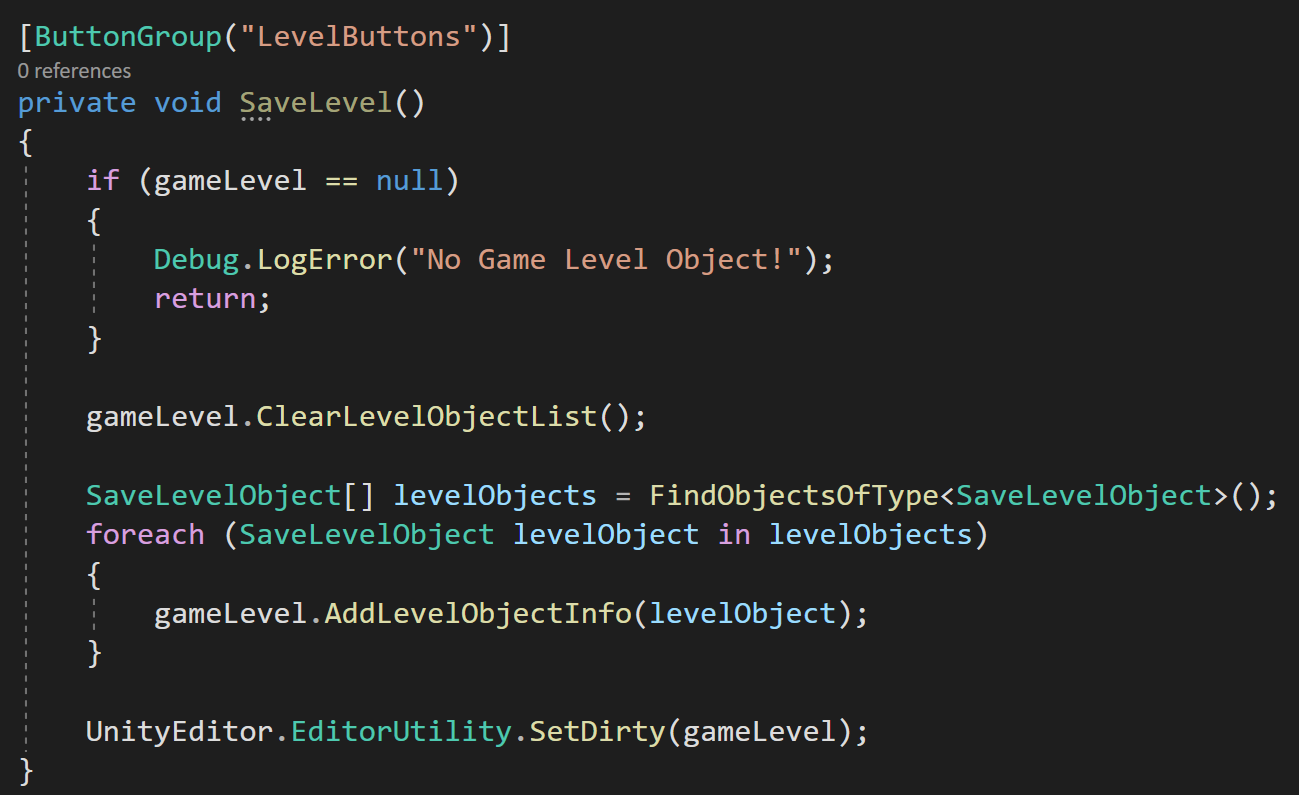
The save level function from the “level Manager”
If you don’t have Odin and don’t want to create a custom inspector you can always use the old trick of using a boolean and checking the value of the boolean in the update function. Use this in combination with the “Execute In Edit Mode” attribute and you can get similar albeit clumsier functionality.
It’s also worth noting that In the “Save Level” function we clear the level before saving it. This ensures that we only save one copy of the level and don’t duplicate objects in our list.
After that, it’s just a matter of iterating through the list (array) of Save Level Objects and adding them to the list on the current game level.
Storing Objects
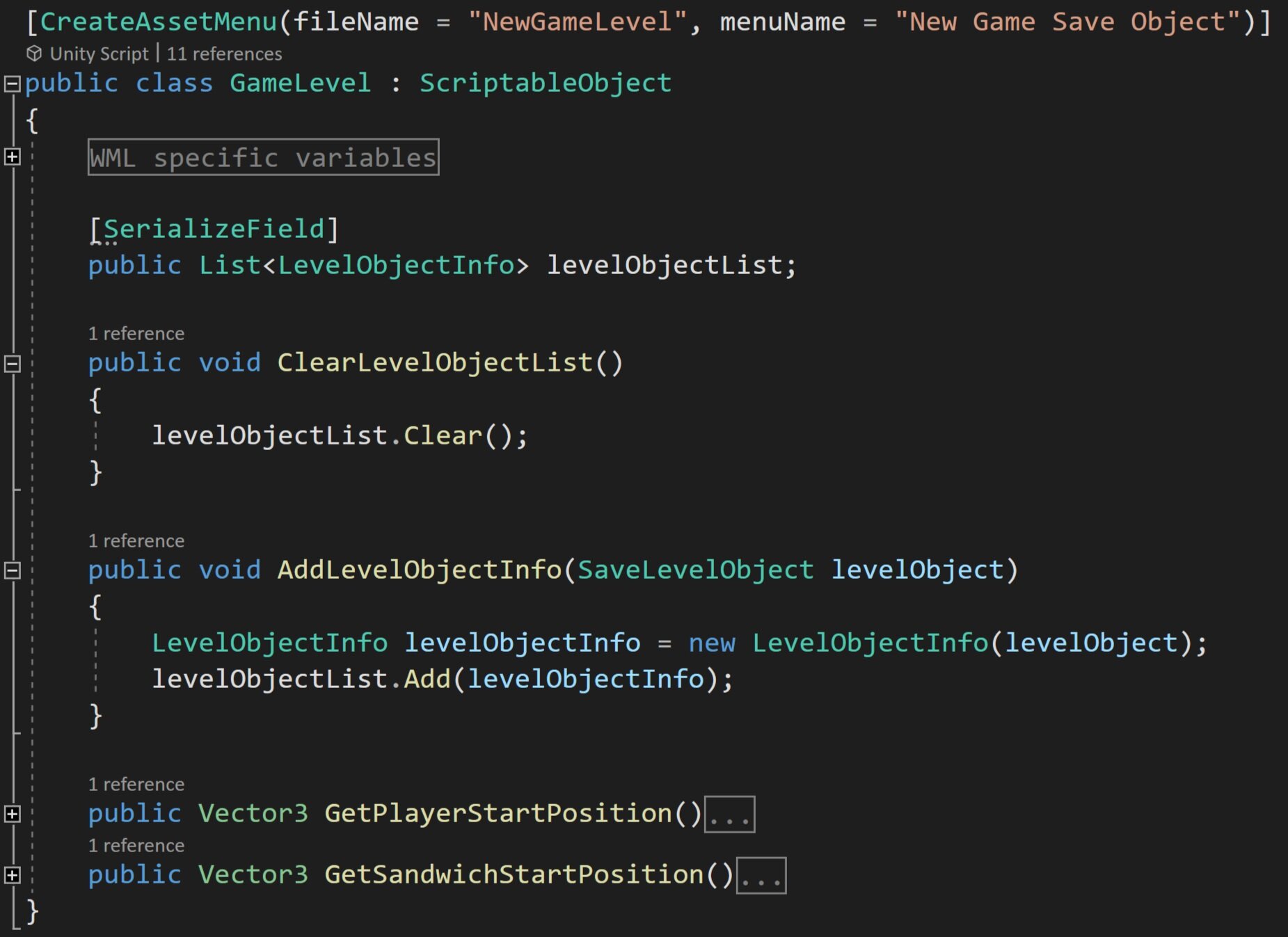
Once the objects have been found we need a place to keep them. And that happens in the “Game Level” class.
The Game Level class is a scriptable object which means that the Game Level objects will be project assets and that makes them easy to handle in so many ways.
If you aren’t familiar with SO’s check out this video I made for the Odin channel. It’s pretty good if I don’t say so myself.
The game level object is pretty simple. It has a list of “level object info” that will contain an enum of the object type and the position of that object.
There are also two important functions. The first clears the list of objects, this was used in the “Save Level” function on the level manager. The second is to add a level object. This creates a new level object, injects all the needed data to the class constructor and finally adds the level object to the list of level objects.

The last two additional functions are specific to WML and just provide an easy way to get the position of the sandwich and the player.
If we take a look at the “Level Object Info” class, we’ll see a constructor that takes in the “Save Level Object” (which is a monobehavior) and stores the needed information. Do note that there is some special handling of the portal or teleporter - this is due to the structure of the prefab and that the portals come in pairs that are parented to a third “portal pair” object.
Also note that the Level Object Info class is NOT a monobehavior. This class exists only in the list on the scriptable object.
Loading Objects

Up to this point, things aren’t too complicated. Sure there are a handful of similarly named classes and you could definitely criticize my naming, but the big idea isn’t too tough to understand. And when it comes to loading the objects, it’s still not too bad but there are a few additional complications.
The biggest issue is to link or connect the object type with a prefab. To do this I wanted a strongly typed connection, not some janky switch statement or block of if statements that are based on the wall objects being the third prefab in a list and the bomb is fifth…
No to that on so many levels! That will 100% for sure break.
It’s going to take a little effort to make this work.
I created yet another class that will contain the enum for the type of object and a reference to the corresponding prefab. This class is the “Save Level Prefab” class.
You can see a list of this type above in the Level Manager. This list will hold references to the prefab that corresponds to the level object type.
You can populate this list manually or (again) if you have Odin Inspector you can use some of their magic to populate it automatically, but I’m going to skip that part for the sake of clarity as it doesn’t really add to the overall concept.

So at this point, we have a list that connects the “level object type” to a correct prefab. All we still need to do in order to load the level is to it iterate through the list of “level object info” and instantiate the prefabs.
So, in the “Load Current Level” function we double check that the current level isn’t null, clear the current level (i.e. the scene), and then iterate through the list of level object info that is saved on the scriptable object. For each level object info, we then iterate through the list of save level prefabs to get the corresponding prefab.
Now, there is certainly some inefficiency to this method. I think creating a dictionary might be a better idea - since dictionaries are faster at lookup than lists. The dictionary could use the “level object type” enum as a key and the object prefabs as the value. The hitch to this plan is that dictionaries are serialized by Unity. However! Dictionaries can be serialized with Odin Inspector which means you can add prefabs in the inspector ;) I might make this change down the road, but for now, the inefficiency isn’t a problem as a few extra milliseconds to load a level won’t be noticed and levels might at worst have a couple of hundred objects. So if it’s not broken I’m not going to break it.
Also using an object pooling solution could also improve performance, but once again this is happening once we level and not while the player is trying to do anything so a small lag spike isn’t currently an issue I need to design around. If it does become an issue, it should be easy to bolt on a system.

Extra bits
You may have noticed that there are two other functions in the level manager. A load level function and a clear level function.
The first is a public function and can be called to change the “current level” and then load that new current level. Nothing too fancy.
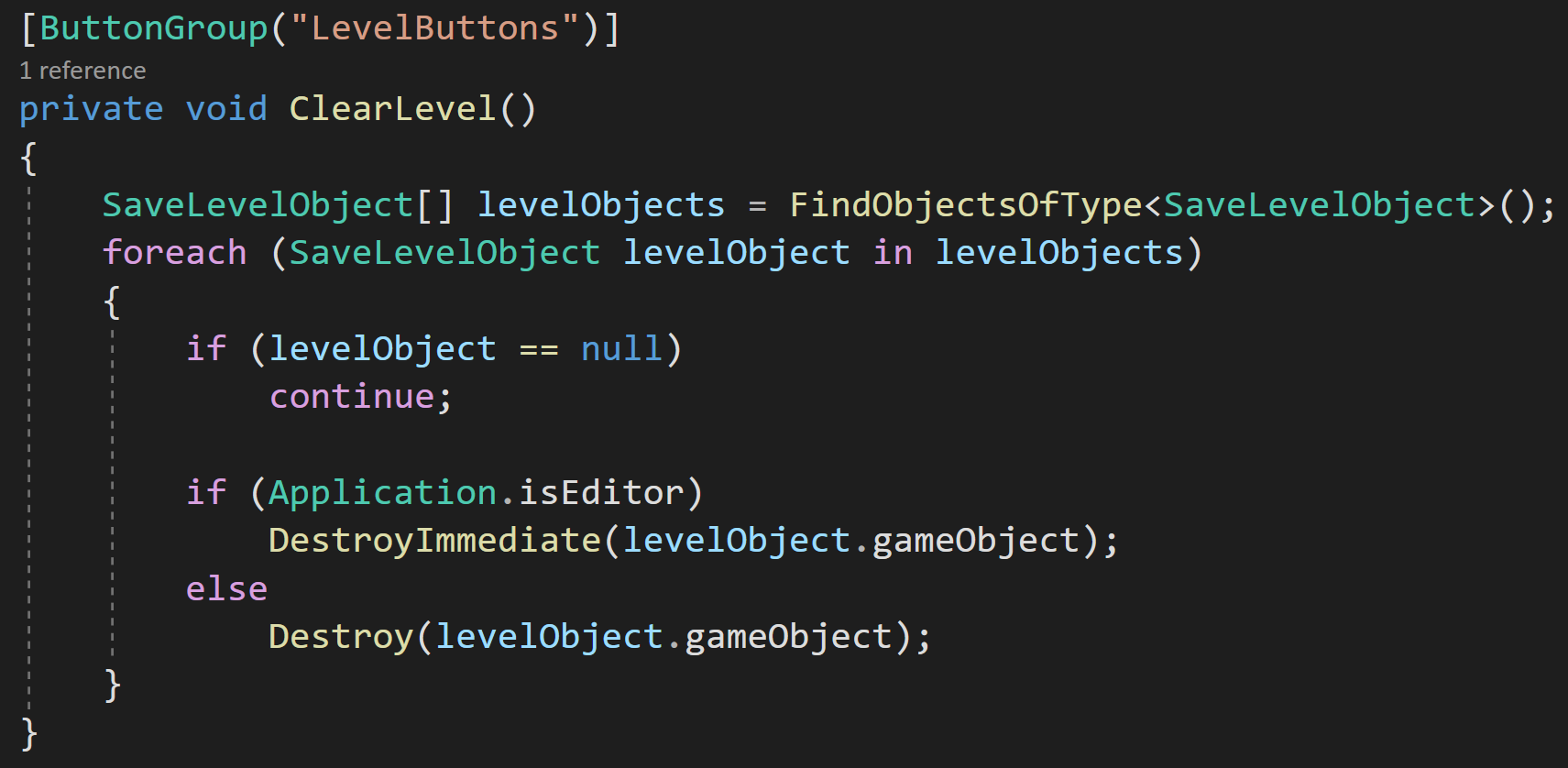
And the second simply clears the current level by iterating through all the Save Level Objects in the scene and destroying them.
Runtime Save = Easy Save
The system as is works really well. This is if you are doing all your saving and loading in the editor - which for the game jam I was doing exactly that.
But I want to go further than that. I want to allow players to design and share levels via the Steam Workshop. This means I need a way to save data at runtime and scriptable objects can’t do that - they can appear to, but trust me they won’t work.
I purchased Easy Save from the asset store a few years back and while it might be overkill for this project - it’s really easy to use and saves all the data to an external file AND will work at runtime so it’s ticking all the boxes.
Custom Types are easily added to Easy Save which allows all of the fields of a class to be saved. Data is saved by type and with a key to look it up later. It’s possible to save an entire class, i.e. the Game Level scriptable object, which is going to make things surprisingly easy! Adding custom types is done in the Easy Save editor window.

Notice the 1 line save functionality!!
With that done it’s simply a matter of creating an instance of the Game Level scriptable object and populating the fields with the correct data (hidden in the WML specific data region). Then in one line, we can save the Game Level data to a file of our choosing!
Seriously! If that’s not worth the money for Easy Save? I’m honestly not sure what is?
Easy Load
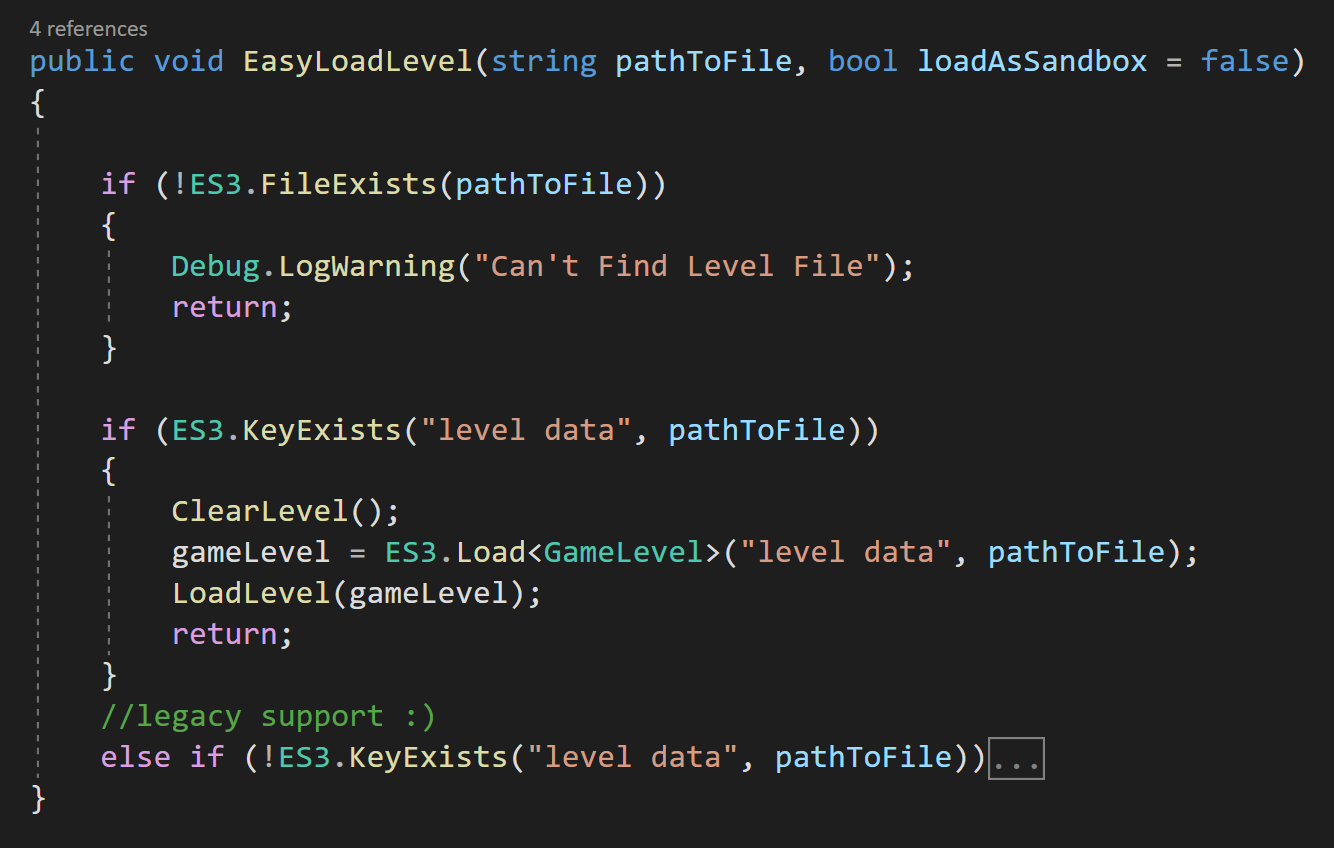
Could it be easier?
Loading the data back into the game is a slight bit tougher, but still not hard. We need to check that the files exist, if not then we stop what we’re doing.
If the file does exist we check for the “level data” key and if that exists we can clear the level, load the data into the game level object and then simply call the same “Load Level” function we did before.
Note: The last line of the function is for legacy support since I made some significant changes to the save system and there are a few levels already on the Steam Workshop ;)
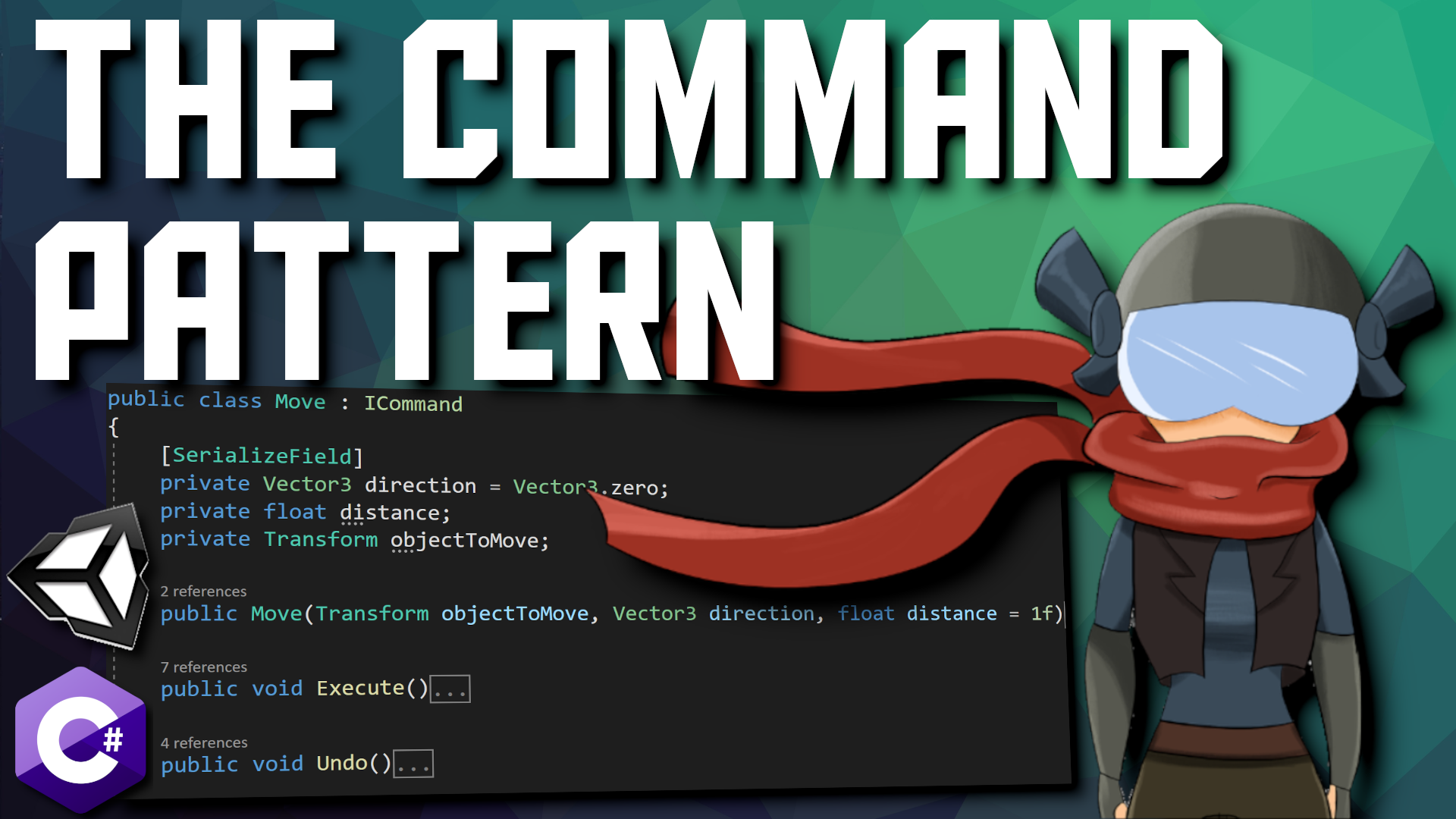
Command Pattern - Encapsulation, Undo and Redo
Programming folks (otherwise known as “programmers”) often talk about encapsulation - which can be a very power concept and tool that can save plenty frustration and prevent bugs as a project grows large.
The idea of encapsulation is that a class or a system has everything it needs to function INSIDE of itself - it doesn’t need to reach out for references and is not dependent on other classes or systems to function. Encapsulation decouples classes and systems. The coupling of systems or classes should generally be avoided to keep your project stable and robust as it grows and has features added.
The command pattern is all about sending information, or a command, to an object. In the case of the command pattern the command itself is encapsulated! The sender and the receiver of the command are not necessarily encapsulated, but rather the command itself is.
This means that all the information needed to execute that command is wrapped up inside a command class. What this means is the object executing the command doesn’t need any external references - all it needs to do is tell the command to do its thing and the command is fully independent and decoupled from other systems!
While this requires some framework and intentionally to create - it can be very useful. It means that commands can be added to a list or queue, run immediately, or run at any later time. This adds or allows significant functionality that would be difficult to achieve with just direct function calls.
This makes it great for asynchronous applications - one example might be a turn-based strategy game where a sequence of commands is created one at a time and then all the commands, or a select number of commands, can be run when it is that object’s turn.
The command pattern can also be used to “easily” create of an undo system - which depending on your project might be helpful or even crucial.
For this post (video), we’re going to start simple. Just using the command pattern to collect commands in a list and execute them over a short time interval. We’ll then add in the ability to undo and redo commands. This will result in some messy code, but we’ll finish up the post by wrapping all that messiness into a “command handler” class - which ends up pretty clean and tidy due to the encapsulation of the commands.
The Code Begins!
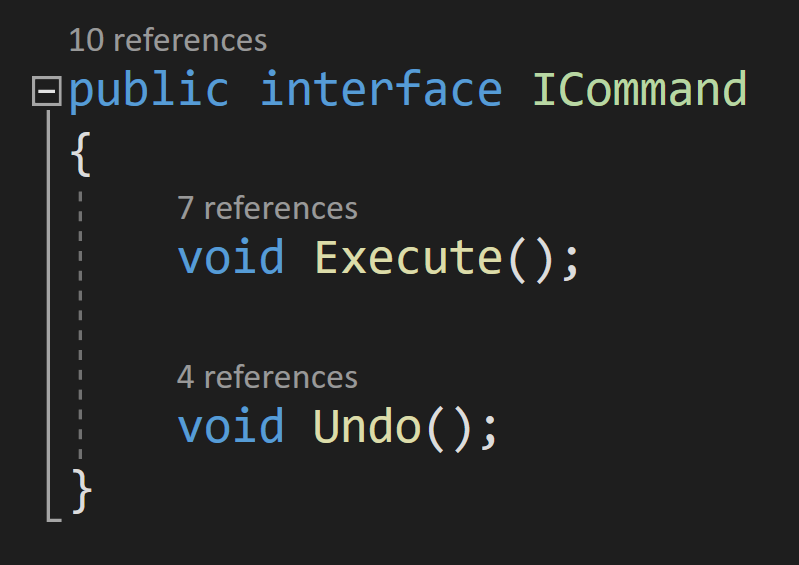
The Command Interface
Again, the core idea of the command pattern is to encapsulate the command in an object. To do that we first need to create an interface that will have two functions. The first function is the “execute” or “do” function. This will contain all the code for the command to complete its action.
The second function is an “undo” function - which will need to have code that reverses or undoes whatever happens in the execute function.
Exactly what the undo function looks like is 100% dependent on what the command is doing.
With the interface complete, we then need to create classes for the actual commands.
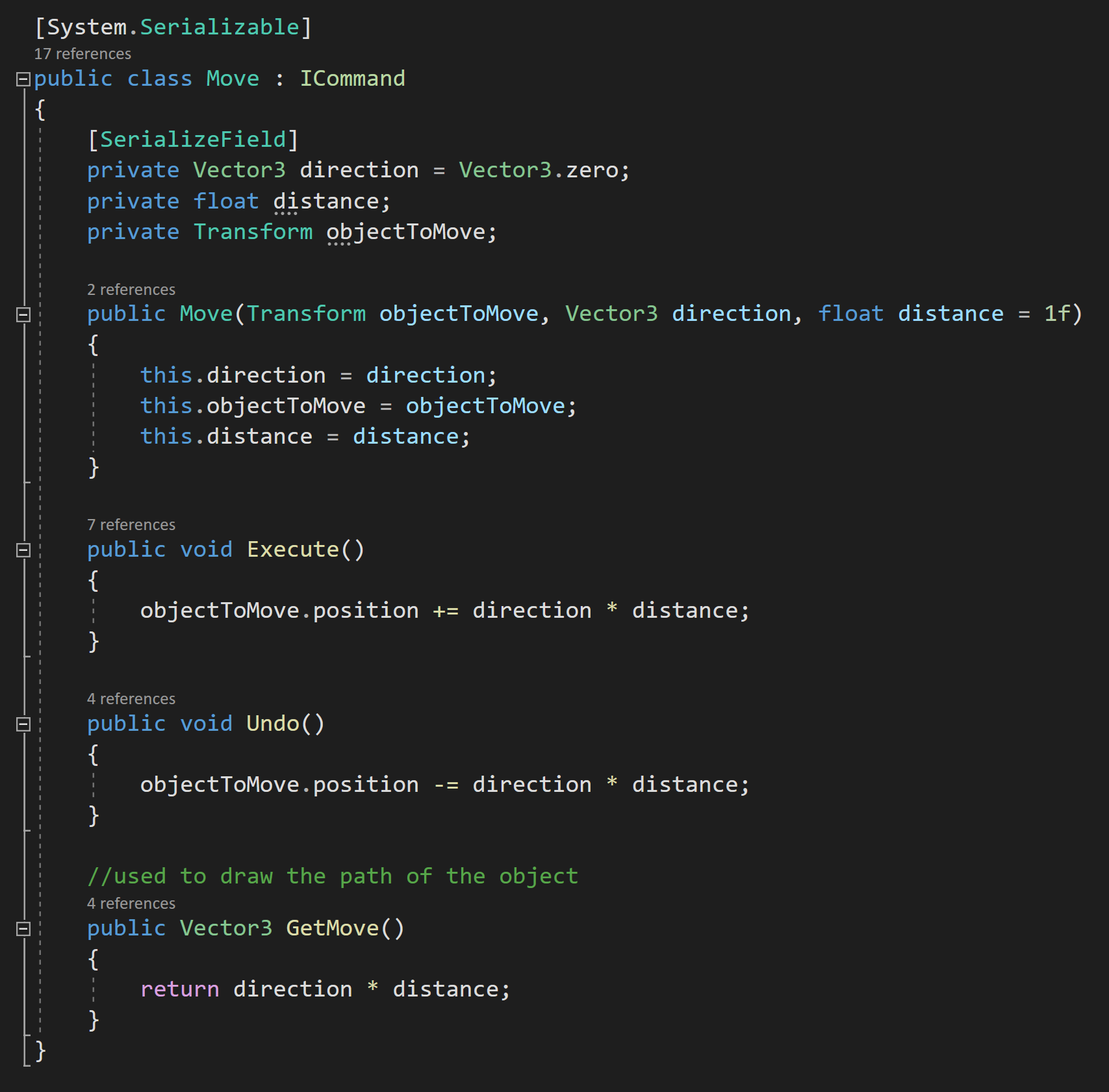
The Move Command - Which Implements the Command Interface
For the purposes of this video, I’m just going to create one command which is a “move command.” This class will of course need to implement the command interface.
In the move class, we need three variables. The first is the direction to move, the second is the distance to move and the third is the transform that will be moving. All three of these variables are private and will have their values set in a constructor.
By doing this, the command instance will have all the information and references that it will need to execute the move command.
This is pretty clever in its simplicity. It’s also pretty clean!
The Execute and Undo functions are fairly straight forward in that they change the position of the transform. The execute moves the transform in one direction and the undo moves it in the opposite direction.
Simple and tidy. Just the way I like it.
I’ve also included a “get move” function that is used in order to draw the path taken by the object - this certainly isn’t the only way to do it. It’s not particularly clean, but it gets the job done and it’s not the focus of this video. For the most part I will be ignoring the path drawing functionality as it’s tangential at best to the command pattern.
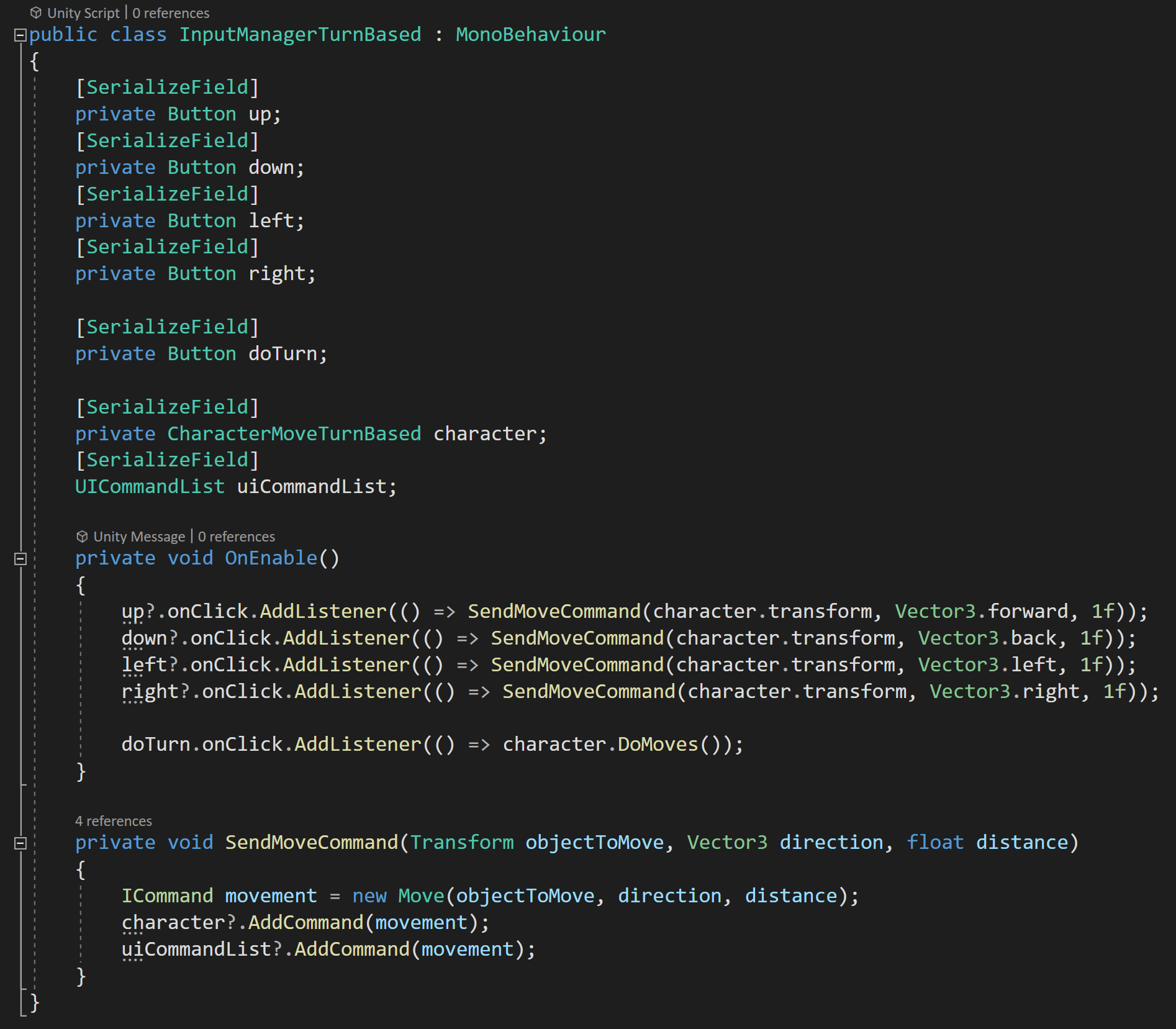
turn Based Input Manager
To control the object and issue the commands, I’ve created a few UI buttons. These are connected into a basic “input manager.”
In the start function a listener is added to each button. The direction buttons all call a “send move command” function. While the “do turn” button will call a function on the player object that will execute the list of commands.
How exactly the input is gathered, of course doesn’t matter, but the “send move command” is crucial and does a few important things.
This function takes in the transform to be moved, in this case the player object’s transform, the direction to move as well as the distance to move. The function then creates a new instance of the move command and send the command to the character controller.
For my example it also adds the command to a UI element that displays the commands on the screen.
A better approach to sending out these commands would probably be to use the Observer pattern or in other words use events… but I didn’t want to go too far astray from the command pattern and complicate the main idea. If you aren’t familiar with the observer pattern or events - definitely go check out that video it’s easily one of my favorite and most used patterns.

Turn Based Character Controller
In our character move class, there is a list of move commands that each incoming command will be stored in. You can see this happening in the “add command” function.
In general, the list could hold types of ICommand, but in order for my path drawing to work I needed to constrain the list to the more specific type.
For simplicity I’m not showing the code that does the path drawing, but if you want to see that you can check out the full code.
There is then a “Do Moves” function that will be called by pressing the “do turn” button. This function calls a coroutine that iterates through the command list and calls “execute” on a command and then waits a short time before looping through to the next command.
And that’s pretty much it for a basic implementation of the command pattern. You just wrap up the commands which contain everything that needs to happen and ship it off to a list for storage so it can be executed when needed.
Again, pretty simple, nice and tidy.
Adding Undo
So let’s look at how an “undo” system might work. The command interface and the move command class remain the exact same. No changes needed at all.
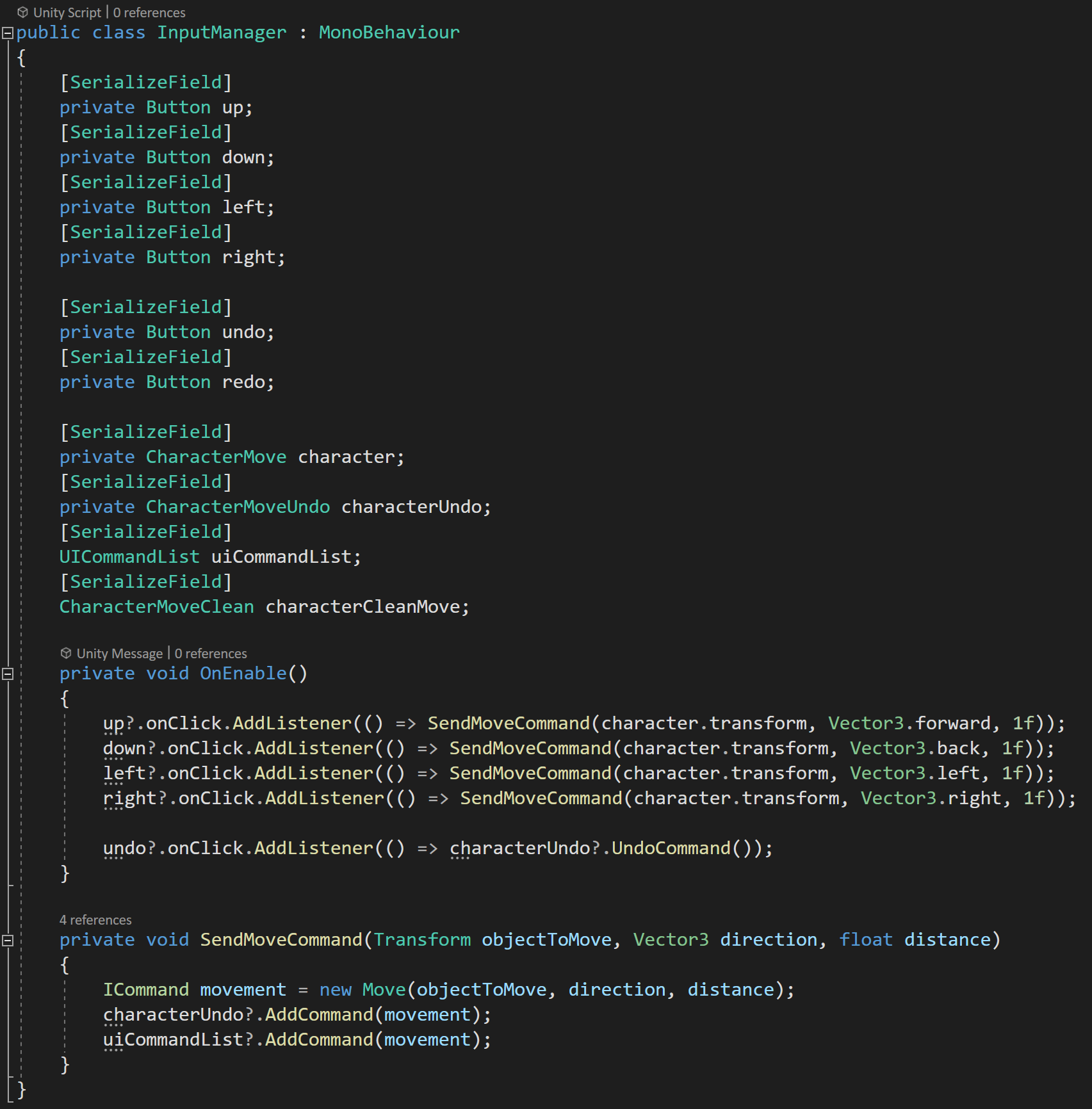
The input manager is functionally the same, but now has an option for an undo button. This new button will call a public “undo” function on the character controller - again not the cleanest implementation and an event would likely be better.
The big difference comes in the character controller script. Here I’ll modify the behavior by now having the player object move in real time as the buttons are pressed. This isn’t necessary for the undo function to work, but I think it makes it easier to demonstrate the undo functionality.
In order for the player object to move in real time, we simply need to execute an incoming command whenever that new command is added.
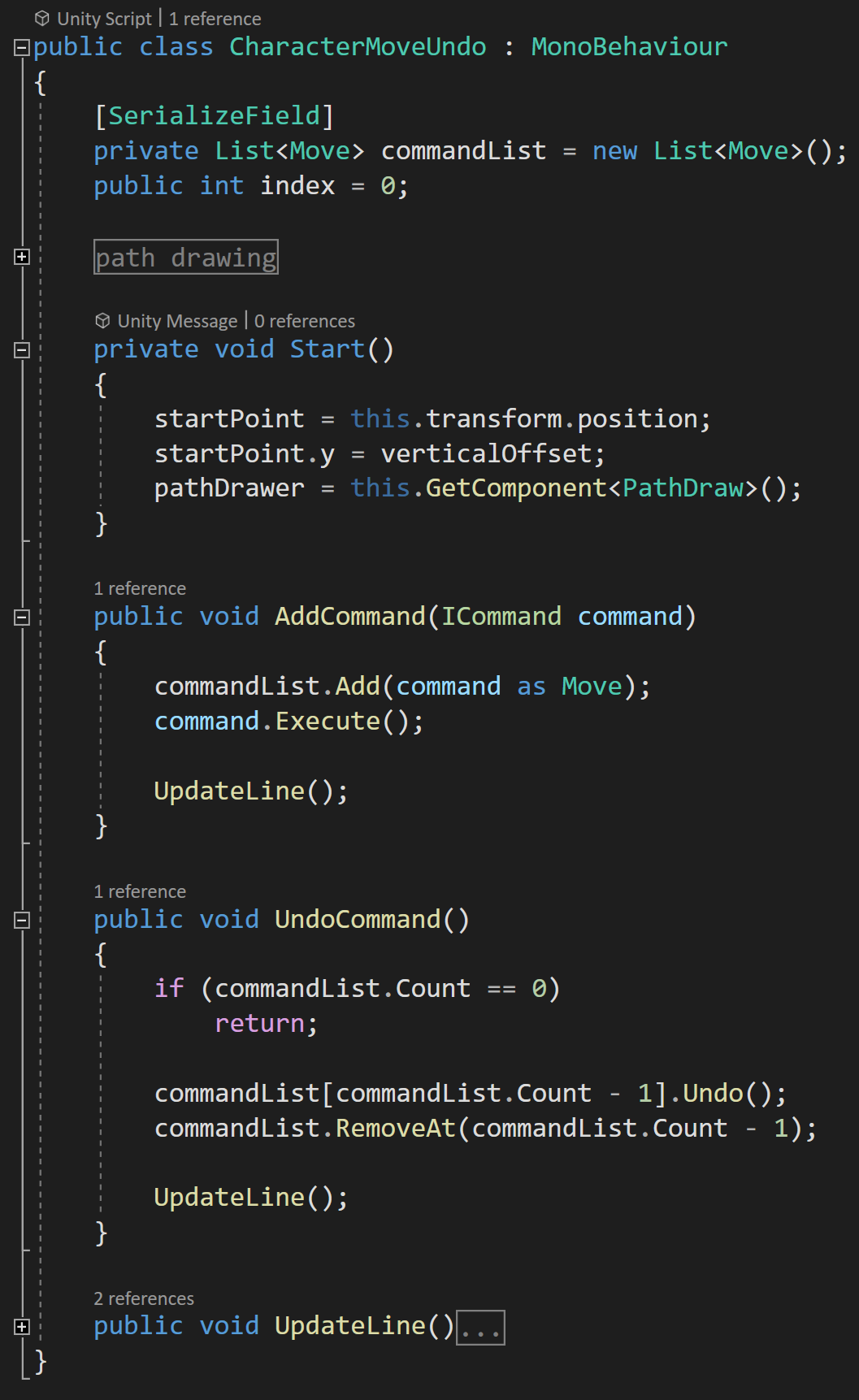
Real time Character Controller with Undo
New to the class is the “undo command” function. This function first checks that there is a command to “undo” by checking the number of commands in the command list, then calls “undo” on the last command in the list and then removes that command from the list.
Tis is super simple! All thanks to the command interface!
When I first saw this I was surprised and even a bit shocked how easy this could be. Now of course if the command is more complex than the move command the writing and testing of the undo function will be more difficult and more time consuming.
BUT!
The interface makes it easy to call that undo function and the inclusion or encapsulation of all the values and references provides a solid framework to create undo functionality.
Redo…
For many games this may be enough, but if you want to also implement a “redo” functionality things are going to get a bit messier - or at least the way I did it. All the changes are made on the character controller. The commands stay the same and the only change to the input manager is to add the redo button and connect it to a redo function on the character controller.

Character with Undo and Redo
For a redo system, we could simply not remove commands from the command list and then execute them again when a redo button is pressed. Essentially just working our way up and down the list of commands...
But! And there is a but.
If some commands are undone and then new commands are added this will cause problems as those new commands would just get added to the end of the command list…
SO!
We need to modify our lists and keep track of which command on the list we currently executing or undoing. So yeah. Sounds simple, and it’s not crazy, but it does get a bit messy.
So the first thing we need to do is add an index variable that can track which command on the list we currently working with.
Each additional command added to the list, the index will increment up one AND with each command undone the index will increment down one. This means we also need to change which command is being undone to correlate with the index and not just the length of the command list.
With that all done we now need to add a few lines to our “add command” function. We need to check and see if our index is at the end of the list - meaning we’ve undone some commands and are now adding a new command.
If it’s not then we need to remove all the commands between our current index and the end of the list by using the “remove range” function.
With this complete, we should be able to add commands, undo some of them and add more commands without screwing anything up. If we were to test this, on the surface we haven’t gained new functionality, but it does mean we can now add a “Redo Command” function.
This function is actually fairly simple, we do some checks to make sure we won’t get a null command or get an out of range error. And then we simply execute the command that correlates to the value of the index.
Once again, the interface with the execute and undo functions makes this surprisingly simple - minus the tracking of the index.
But!
It’s So Ugly!
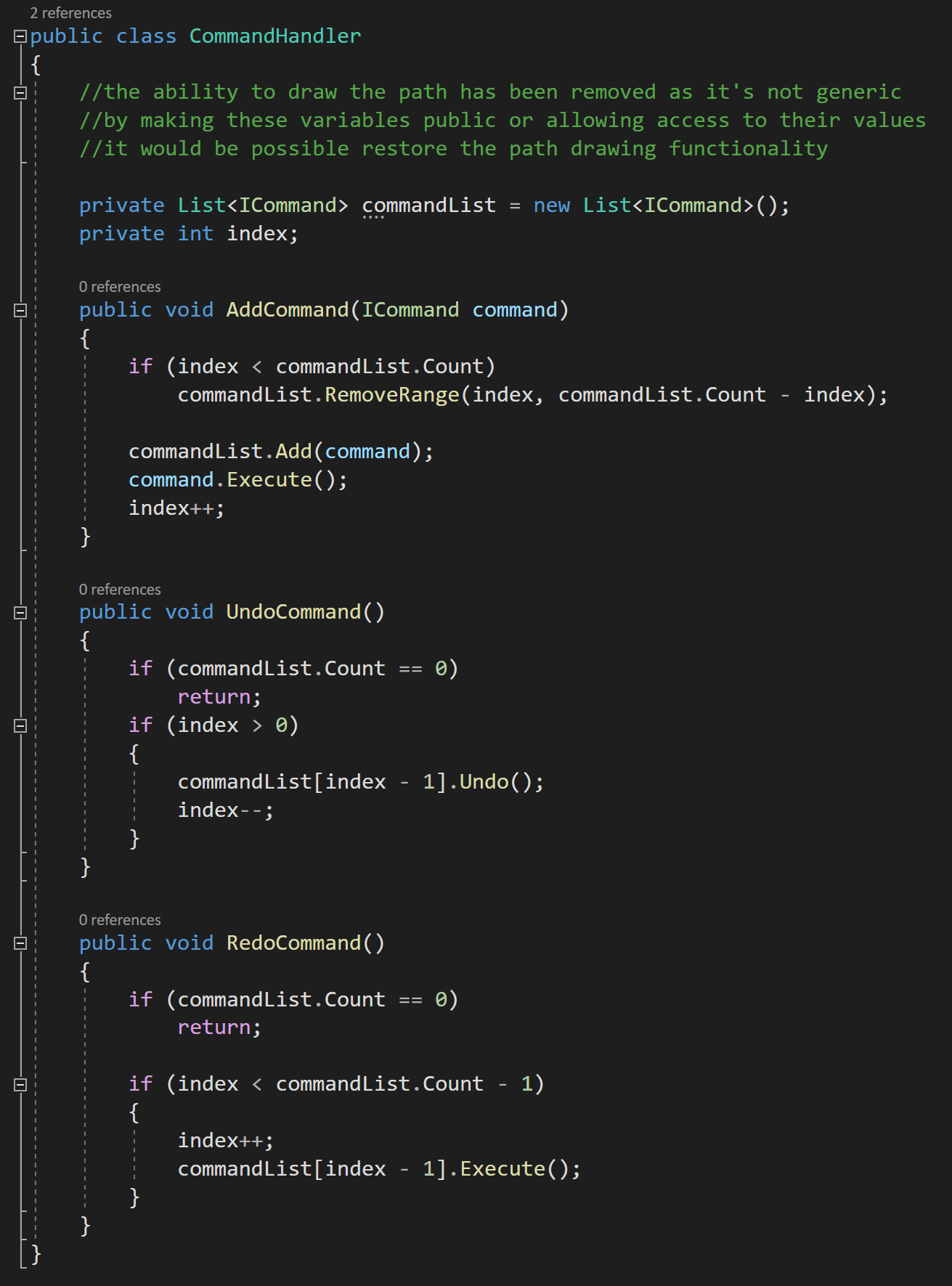
Command Handler Class
There is still some overall ugliness to this solution. I don’t like that this code is in my player controller… The AddCommand, UndoCommand and RedoCommand have NOTHING to do with the player controller they could and should be general and usable with ANY command. This code is generic and should be reusable.
Remember the whole point of the command pattern was to encapsulate the command… so these functions and the list of commands could be just about anywhere.
So is no need for all this code to be in the player controller AND if you were making a game with multiple types of objects that could all receive commands it would be a pain, and more importantly error prone, to repeat this code in multiple classes.
So let’s extract the command code and stick it into a command handler class.

Super Clean!!!
This class contains the list of commands, the index as well as the functions to add, undo and redo commands. Then in the player controller script, we simply need an instance of the command handler class.
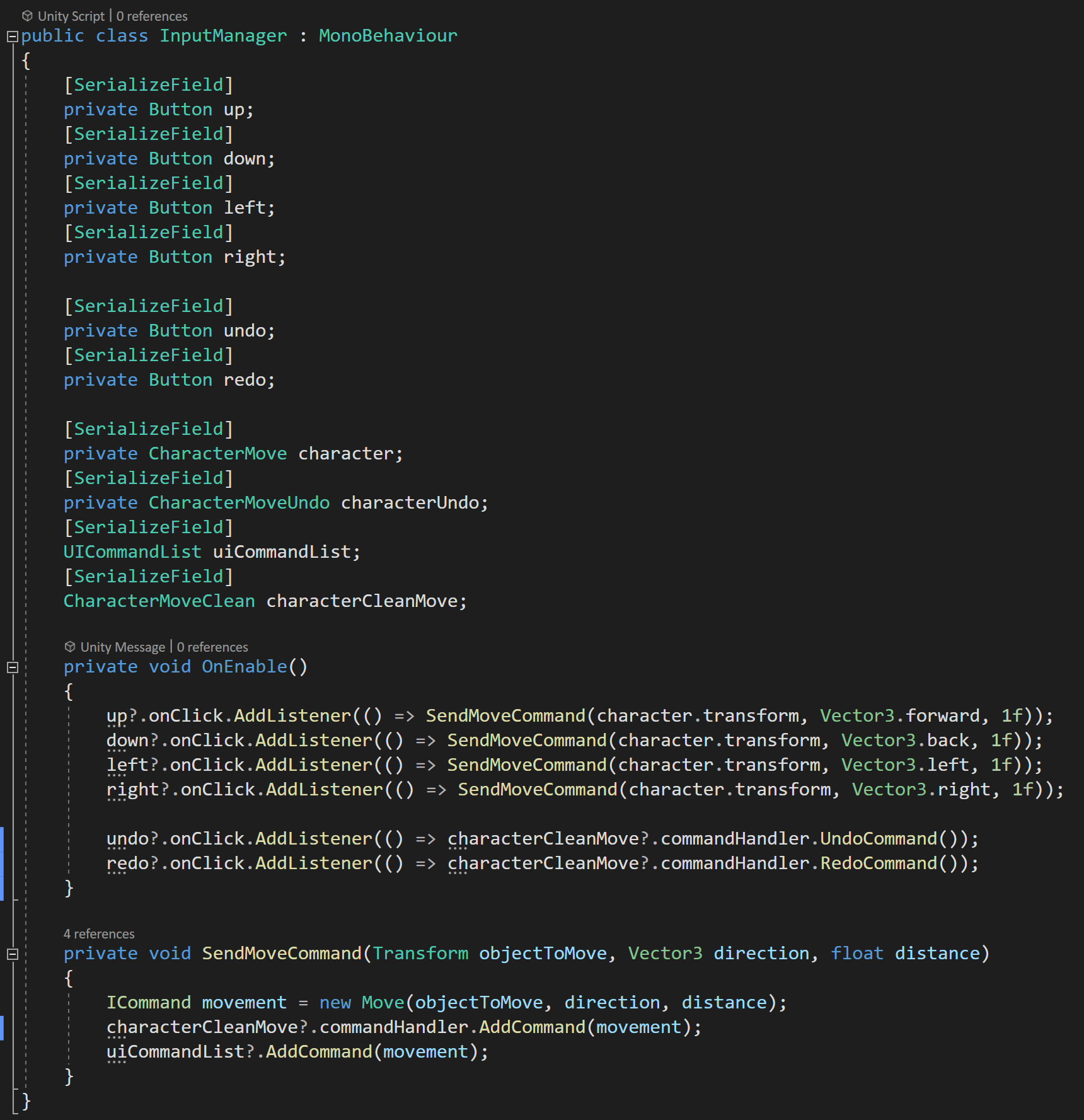
Final Input Manager
The final tweak is to reroute our buttons in the input listener to call functions on the command handler.
If we take a step back, what we have is really clean and surprisingly generic.
Yes, we do have a lot of classes, but that is often a trade off with our programming patterns and I think cleanliness of the implementation more than makes up for the extra classes.
Due note that this implementation does lose our ability to easily draw the path of the player, but with some cleverness, especially if commands are sent with events, this can be gotten around without too much work.
A few last thoughts…
Like many patterns it’s not the exact implementation that is important, but rather the large idea and framework. While I used direct function calls, I think using events i.e. the observer pattern could be more generic and more powerful.
The command pattern may result in commands being created and destroyed with some frequency. Which can create unneeded garbage collection. While not a problem with my simple example, it would be possible to implement an object pooling solution to use with the commands if performance is crucial or if you just want to squeeze out a few more FPS out of your game.
Code
GitHub Link: https://github.com/onewheelstudio/Programming-Patterns
GJTS - Adding Steamworks API and Uploading
So here we go! A new project and a new series! If you have no idea what I’m talking about you might want to check out the series intro video video.
Today’s goal is to get “Where’s my Lunch” working and downloadable on the steam client. And in the process, hopefully give you an idea of what that takes to do it with your game. While getting the entire store setup will take days or even weeks… getting your game on the Steam servers and ready to share with friends or supporters is actually pretty easy.
While it’s not necessary to do it this early in the development process, I want to do it as an exciting first step AND integrating steam at this point seems like a good idea as adding significant functionality early in the development process generally keeps things working smoothly down the road.

Steamworks
So if you are trying to follow along, the first thing you need to do is set up a Steamworks account. Now I already have one, but if I remember it’s not too complicated to do it - but you WILL need to provide quite a bit of information and it’s definitely more involved than creating a regular steam account, but very doable and Valve should walk you through the process.
I WOULD strongly recommend that you create a new Steam account too. DON’T use your personal account for publishing games. A layer of separation, even a small one will be appreciated when comments and questions about your game start flooding your notifications. Not to mention that keeping your branding clean and semi-professonal is much easier with a dedicated publisher account.
Personally, I log in with my OWS account in a browser and into the Steam Client with my personal account… This prevents tedious logging in and out while still keeping some separation. I’ve also got the two accounts setup to use family sharing which helps keep things simple in terms of accessing games.
As another side note, many people think they need to start a corporation to publish games… Now I’m not a lawyer, I hope that’s obvious, but please go talk to a lawyer first if you think you need to form a corporation. Taxes and such, at least here in the states, get way more complicated if you form a corporation and unless you start making real money it’s not worth it.
OWS is registered as a sole proprietorship which has worked perfectly fine over the last few years. And unless I sell 10’s of thousands of copies of this game, it’s going to stay that way for a while longer.
Once you have a steam account you can add an app to Steamworks. And THIS is the part you have to pay for… My first game went through Steam Greenlight, but these days you just have to pony up $100 and you can put your game on Steam.

Once your application is added you’ll see an appID which we’ll be making use of quite a bit so it can be worth writing down or at least leaving the window open. With a Steamworks account you can now get access to the “Steamworks Development” group on steam.
It’s fantastic.
Just about every question you’ll have about publishing a game will be on the forum AND if you can’t find the answer you can always ask a new question. Valve has employees that monitor the group and will chime in from time to time when needed. If you’ve never published a game before… you should spend a lot of time reading in this forum.
It will be worth it.
Picking a Wrapper
The next step in the process is to pick a Steamworks wrapper… The steamworks API is all in C++ and since I’m using Unity, which uses C#, I’m going to need a wrapper or a layer of code to interact with that API. You could write your own, I suppose… but why?
Don’t do that.
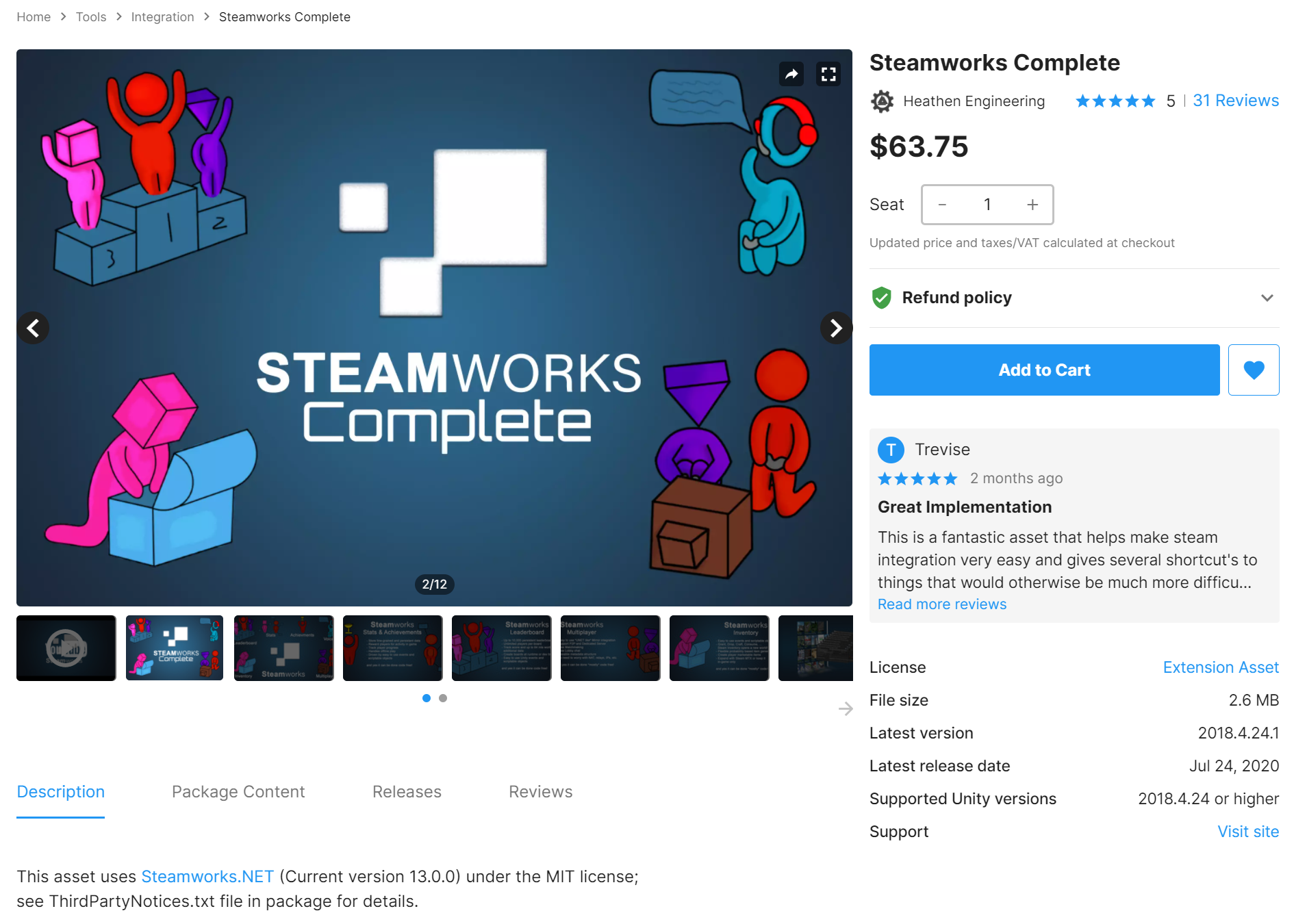
For my first game I used Steamwork.NET which I think at the time was the only real option. Nowadays there’s a few more. So, I spent a few hours researching: watching videos, reading posts and articles.
I found “Steamworks Complete” on the asset store. It uses Steamworks.NET and effectively wraps it in an easier to use package. Watching the videos it seems like the asset is well designed, but in the end, a wrapper of a wrapper to me didn’t seem like the best idea. I’ve grown cautious of using 3rd or 4th party tools…
After all, if I figured out Steamworks.NET several years ago with much less programming experience, I should be able to do it again and I don’t need someone else’s code to help…
I think.
I hope.
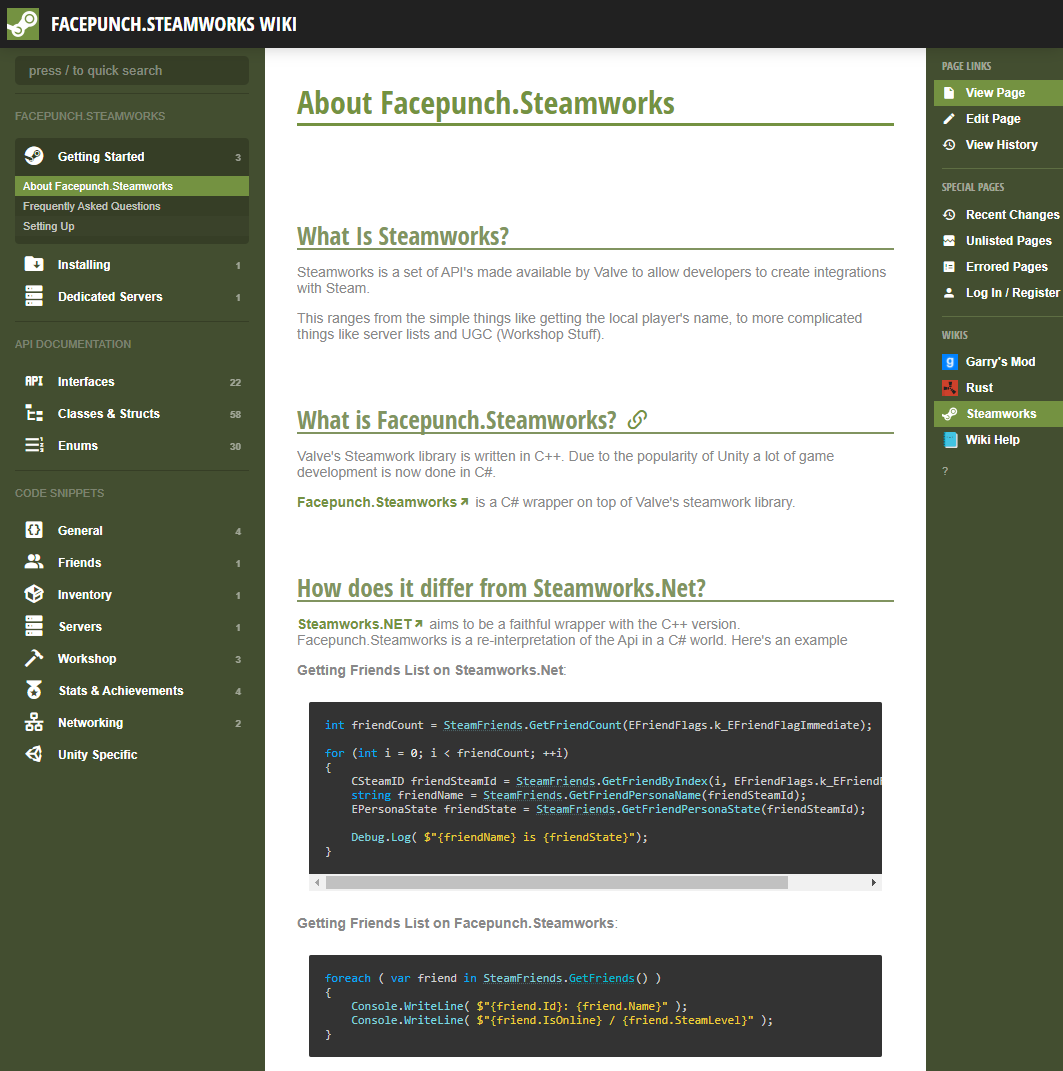
I was just about ready to download Steamworks.NET, but for some reason I hesitated and did one more google search - the choice of wrapper is something I’m going to have to live with until the project is finished so I wanted to make sure all my ducks are in a row!
And I’m really glad I did. In an article, I found a link and reference to “Facepunch Steamworks!” And oh man, does it look better and easier to use! Steamworks.NET is all in C# but it’s not user friendly or at least not as much as it could be. Facepunch Steamworks is easy to read and easy to understand if you're comfortable with C#. Plus it’s in active development as it’s used in Rust and Gary’s Mod. Which is more than good enough for me.
Whether it’s true or not I also found a quote from the Steamworks.Net developer that “most people should use Facepunch.”
Okay. Definitely good enough for me.
The install process is dead easy, but I did find that locating the link for the instructions for doing so in Unity a bit hidden - but once I found them it’s a simple download and then just a matter of dropping the files into a folder in my project.
Honestly, I can’t imagine it being much easier.
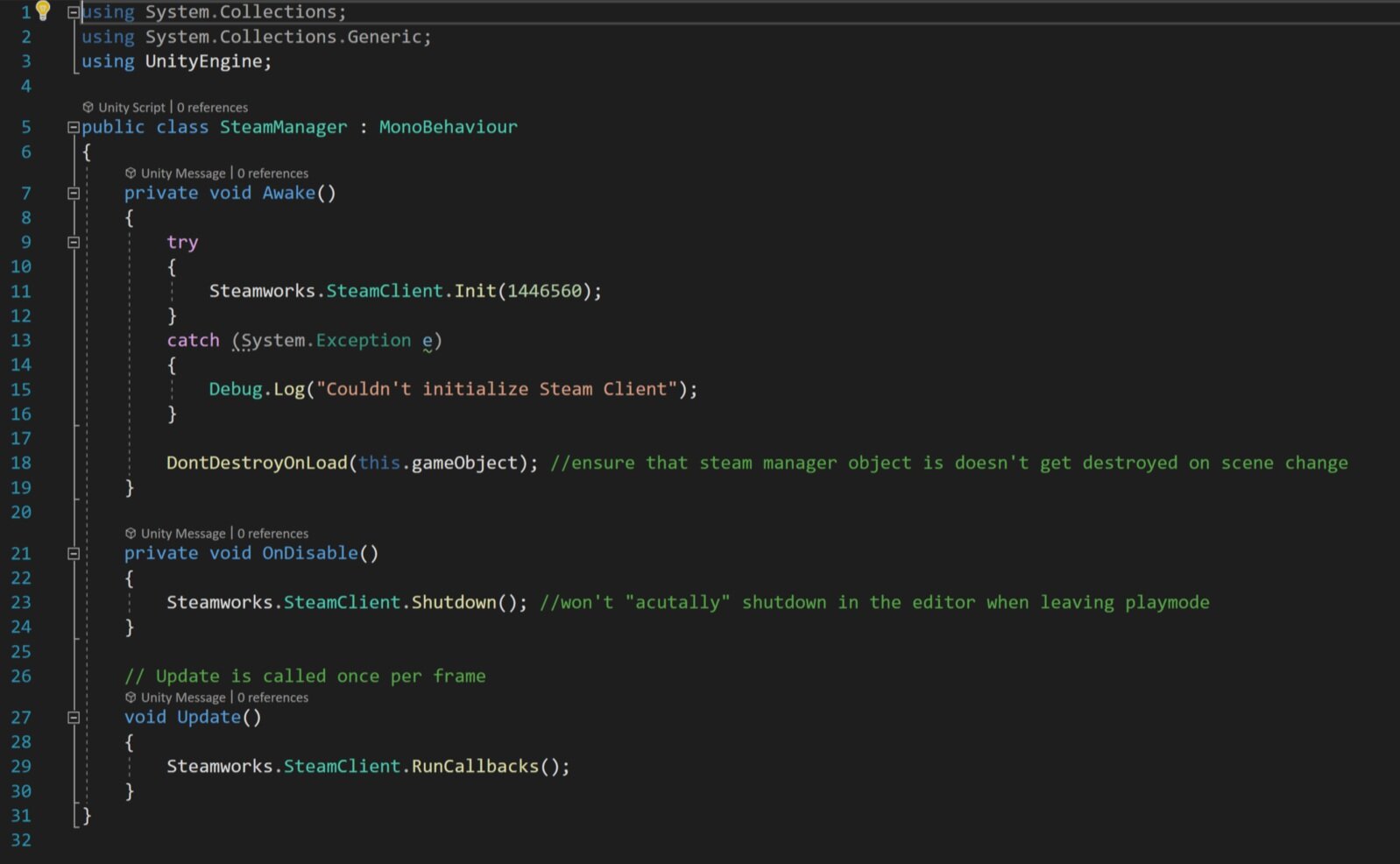
After that it’s just a matter of creating a simple “Steam Manager” and Facepunch provides an example of how to do just that. The steam manager will create a connection with Steam and make sure that the game is getting all the callbacks that it may need - most of this functionality will be needed later as I implement steam features like achievements, leader boards, and hopefully workshop functionality.
Do notice that I added the command “Don’t Destroy on Load” to ensure the steam manager will persist in all scenes. This is quick and easy, but I will likely need to revisit this down the road as returning to the start scene from another scene will create a duplicate copy of the steam manager. Not a big deal at this point, but I’d like to keep things tidy when possible.
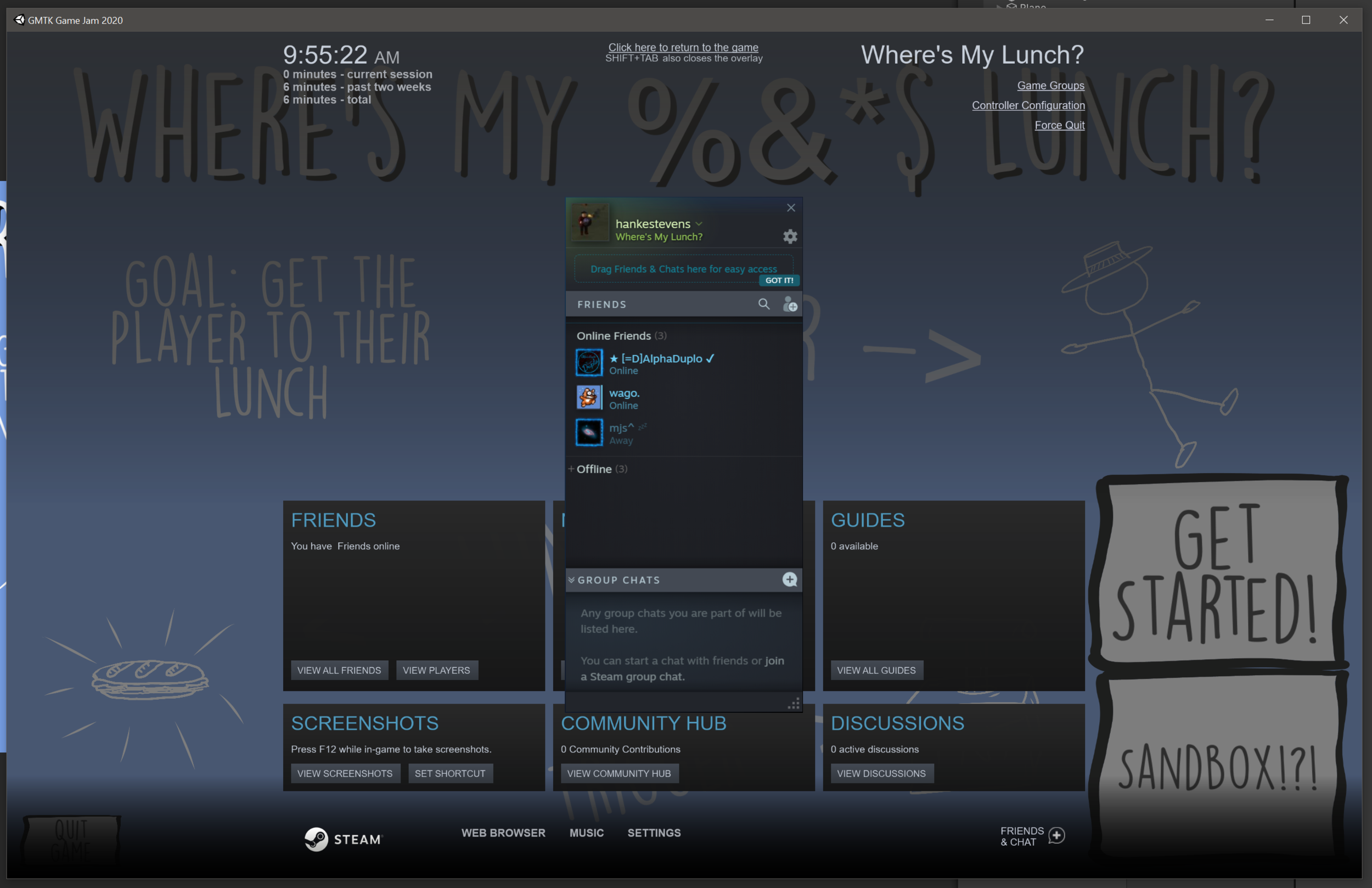
At this point, I wanted to do a little testing. So I made a build. And, sure enough, the steam overlay works AND Steam shows that I’m playing a game. Not a big step, but pretty fun all the same!
Now for the harder parts… I wanted to upload the game to steam and get it functional so I could push out a few keys and let folks play the game.
The rest of the post (and video) is going to look at how to do that and since I did get it working I decided to add a few Steam keys to the comments below... (Video only)
And if I remember I’ll keep adding keys with each video in the series. So make sure to get to the next video early!
If you happen to be a patron or a channel member supporting the channel with $5 or more per month - keep your eyes open as I’ll be looking to get keys into your hands as well.

Documentation! Probably more than you want to read ;)
But back to the actual point of the video, Valve provides pretty good documentation on how to upload your game to Steam, but still, I managed to fumble around and forgetting a few key steps. Those extra steps are there for good reason and give you, the developer, a bit more fine control on what players have access to and when they get that access.
So let’s take a look at how to make it all work.
The first step is pretty straight forward, and that’s to set the allowed operating systems. In my case, I’m sticking with 64 bit Windows for the time being. After that, a depot needs to get set up with the correct OS. Do note that each depo has an ID number that’ll be needed in the next steps - this number should be related to your appID.
You also need to set up the launch options, which essentially sets the executable file that needs to be opened to play the game.
After that I needed to download the SDK and put it somewhere convenient. Value recommends putting your game files into a folder inside the SDK folders, you don’t have to do this, but it’s not hard so I’m going with it. You could choose to manually move the files with each build OR have the SDK look into different folders… but this seems easiest for now.
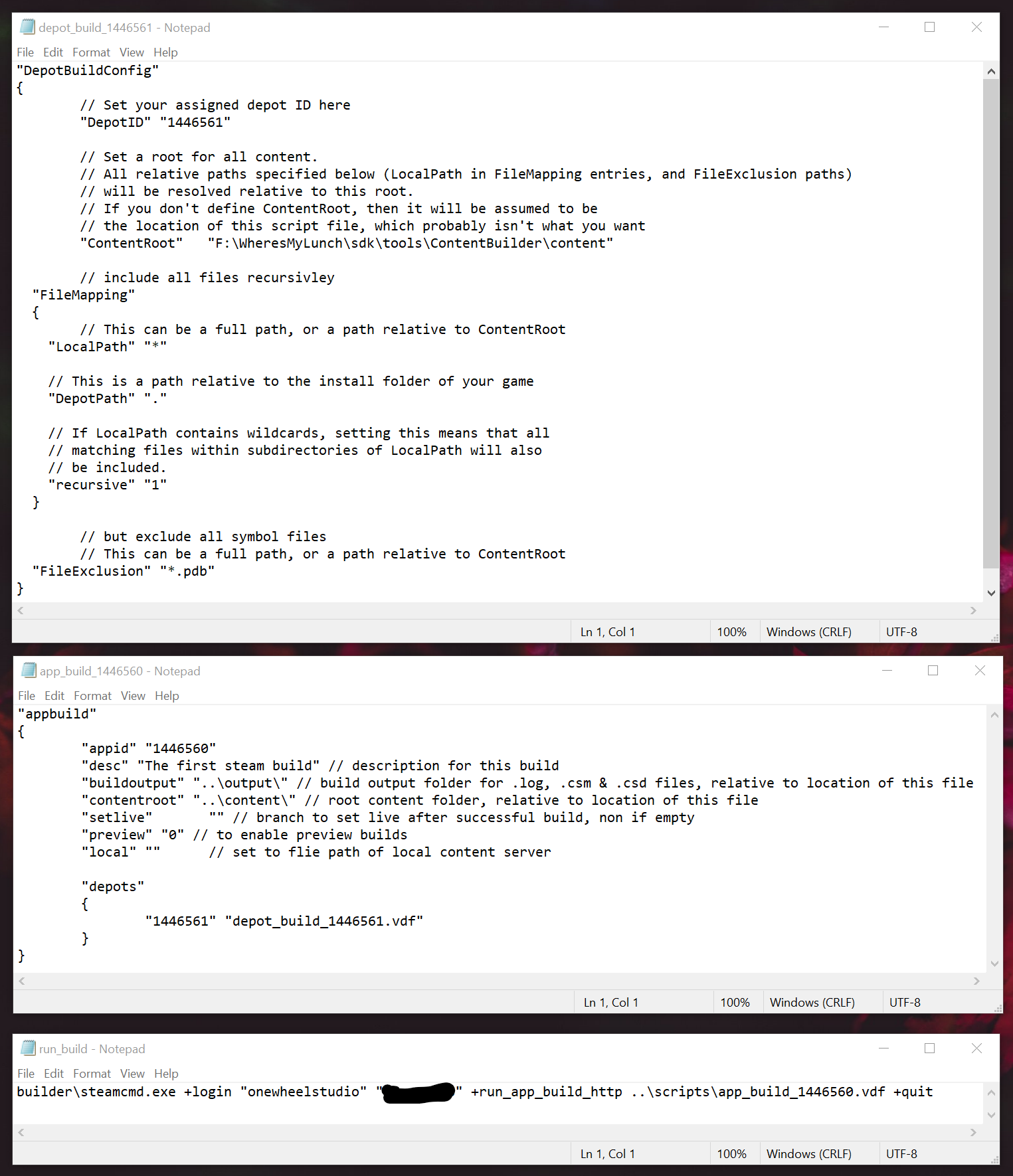
The three scripts that need to be edited
I did this by changing where Unity puts the builds and rebuilding the project.
Next, it’s just a matter of editing three text files to push the game files up to the steamworks backend. These files can be opened in just about any text editor - I use notepad for simplicity. As a tip for those on a windows machine: holding shift while right-clicking should give options to select a program to “open with” if they don’t automatically open in notepad.
The first script we need to edit is the “Depot build” file which can be found deep in the SDK folder structure under “content builder” and then in “scripts.” Here all that needs to be changed is the depot ID which we got when we created the depot.
In the same folder there is the “app build” file in which you will need to change the appID and information about the depot build file.
That last file that needs modification is the “run build” batch file. This file helps streamline the upload process. In this file, you’ll need to put in your username and password - both in plain text but surrounded by quotes.
Then all that needs to be done is to make sure all three files are saved and run the batch file.
I have two-factor authentication turned on so I got prompted for a code. If you don't have this turned on, especially in your developer account, go do it now! Even if you don’t make money this isn’t an account you want to lose control of.
Now, it might take a while to upload the first time or if big changes have been made but the game is on it’s way to the steam servers!
Sweet!
Now, when I got to this point I was feeling pretty confident and pretty happy. It should all work!
Right?
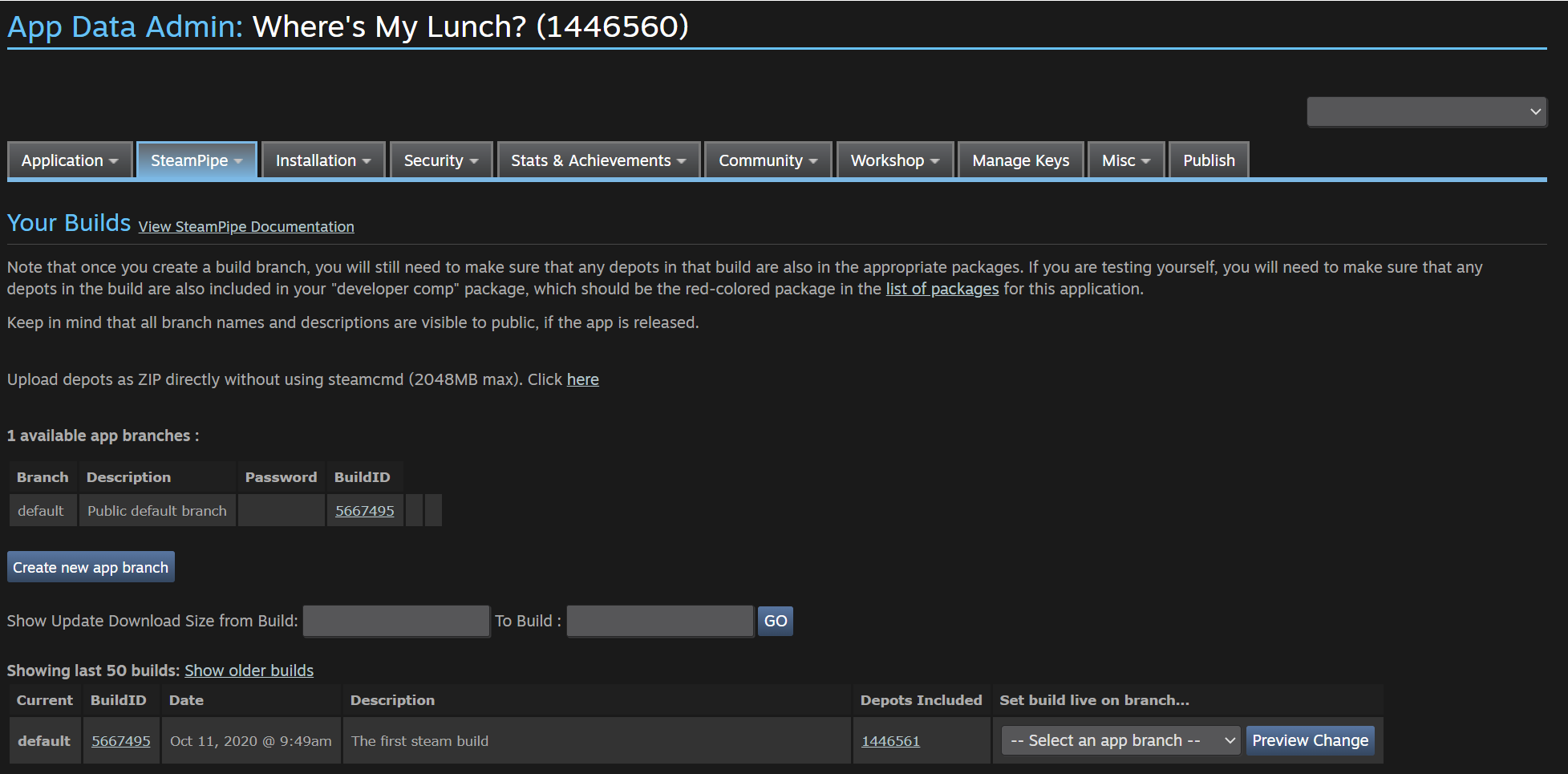
The branch build settings
Well, it didn’t.
The game showed up in steam, I could even “install” it and press the play button… But I got an error. I checked the local folders and there wasn’t anything there.
Hmm. What did I mess up?
Well, it turns out there are a few extra steps that I missed. The build branch needs to be set and the changes saved…. That’s easy.
So, confident that I’d fixed it, I did one more test and I still had the same problem. It took a search or two on the development forum to find the problem.
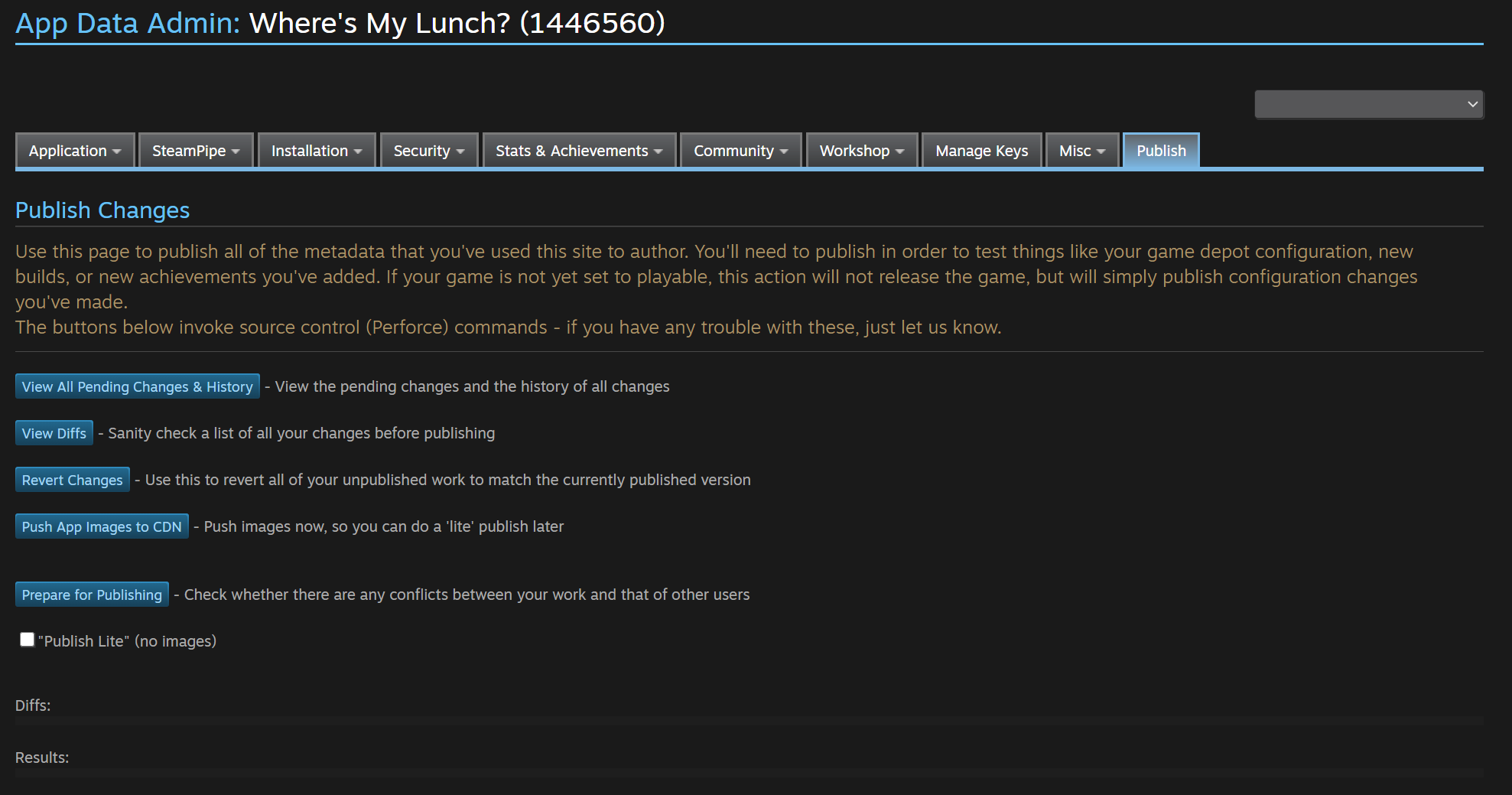
The magic button… “Publish!”
The missing step is to actually publish the build. Go figure.
When you do this SteamWorks makes you type a “password” into a field so that you don’t do it by accident. Which is good. This is Valve protecting me from myself. And I very much need that.
Remember that this is potentially going public AND steam will likely auto-update players versions so you want to be REALLY sure that you aren’t doing this by accident and pushing a test build when you aren’t ready.
So! with that last step… It finally works! “Where’s My Lunch” is playable through the steam client.
Even though I’ve done it before, this feels pretty great. I’m just going to enjoy this feeling for a little while…
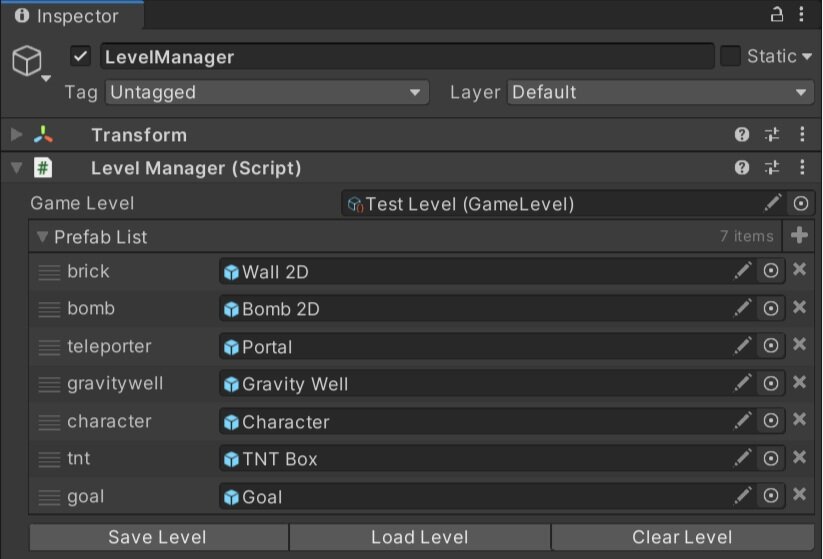
Load/Save Manager with some Odin Goodness
In the next post (video) I’ll be taking a look at the level save system and making modifications so it can work with the Steam Workshop. Right now it’s pretty basic, but it saved me enormous amounts of time during the game jam. It allowed me to load, create and save a level in a matter of minutes! It’s generic enough and I think it could work for a lot of simpler 2D and 3D games. So I’m looking forward to sharing that with you.
I’ll also be working to implement the Steam Workshop - which will mean some tweaks and adjustments to the save system as well as creating a the UI to allow the players to upload and download content.
Older Posts
-
January 2026
- Jan 27, 2026 Save and Load Framework Jan 27, 2026
-
April 2024
- Apr 10, 2024 Ready for Steam Next Fest? - Polishing a Steam Page Apr 10, 2024
- Apr 1, 2024 Splitting Vertices - Hard Edges for Low Poly Procedural Generation Apr 1, 2024
-
November 2023
- Nov 18, 2023 Minute 5 to Minute 10 - Completing the Game Loop Nov 18, 2023
-
September 2023
- Sep 13, 2023 Visual Debugging with Gizmos Sep 13, 2023
-
July 2023
- Jul 4, 2023 Easy Mode - Unity's New Input System Jul 4, 2023
-
May 2023
- May 19, 2023 Level Builder - From Pixels to Playable Level May 19, 2023
-
April 2023
- Apr 11, 2023 Input Action in the Inspector - New Input System Apr 11, 2023
-
February 2023
- Feb 26, 2023 Tutorial Hell - Why You're There. How to Get Out. Feb 26, 2023
-
December 2022
- Dec 31, 2022 Upgrade System (Stats Part 2) Dec 31, 2022
-
November 2022
- Nov 10, 2022 Stats in Unity - The Way I Do it Nov 10, 2022
- Nov 5, 2022 State of UI in Unity - UI Toolkit Nov 5, 2022
-
August 2022
- Aug 17, 2022 Knowing When A Coroutine Finishes Aug 17, 2022
-
April 2022
- Apr 23, 2022 Unity Input Event Handlers - Or Adding Juice the Easy Way Apr 23, 2022
-
March 2022
- Mar 15, 2022 *Quitting a Job I Love Mar 15, 2022
-
February 2022
- Feb 8, 2022 Split Screen: New Input System & Cinemachine Feb 8, 2022
-
January 2022
- Jan 24, 2022 (Better) Object Pooling Jan 24, 2022
- Jan 19, 2022 Designing a New Game - My Process Jan 19, 2022
- Jan 16, 2022 Strategy Game Camera: Unity's New Input System Jan 16, 2022
-
December 2021
- Dec 16, 2021 Raycasting - It's mighty useful Dec 16, 2021
-
November 2021
- Nov 22, 2021 Cinemachine. If you’re not. You should. Nov 22, 2021
-
August 2021
- Aug 3, 2021 C# Extension Methods Aug 3, 2021
-
June 2021
- Jun 27, 2021 Changing Action Maps with Unity's "New" Input System Jun 27, 2021
-
May 2021
- May 28, 2021 Unity's New Input System May 28, 2021
- May 8, 2021 Bolt vs. C# - Thoughts with a dash of rant May 8, 2021
-
March 2021
- Mar 10, 2021 Coroutines - Unity & C# Mar 10, 2021
-
January 2021
- Jan 14, 2021 Where's My Lunch? - January Devlog Update Jan 14, 2021
-
December 2020
- Dec 27, 2020 C# Generics and Unity Dec 27, 2020
- Dec 7, 2020 Steam Workshop with Unity and Facepunch Steamworks Dec 7, 2020
-
November 2020
- Nov 27, 2020 Simple Level Save and Load System (Unity Editor) Nov 27, 2020
- Nov 9, 2020 Command Pattern - Encapsulation, Undo and Redo Nov 9, 2020
-
October 2020
- Oct 28, 2020 GJTS - Adding Steamworks API and Uploading Oct 28, 2020
- Oct 9, 2020 Game Jam... Now What? Oct 9, 2020
-
August 2020
- Aug 16, 2020 Strategy Pattern - Composition over Inheritance Aug 16, 2020
-
July 2020
- Jul 24, 2020 Observer Pattern - C# Events Jul 24, 2020
- Jul 15, 2020 Object Pooling Jul 15, 2020
- Jul 3, 2020 Cheat Codes with Unity and C# Jul 3, 2020
-
June 2020
- Jun 16, 2020 The State Pattern Jun 16, 2020
-
August 2019
- Aug 12, 2019 Easy UI Styles for Unity Aug 12, 2019
-
July 2019
- Jul 3, 2019 9th Grade Math to the Rescue Jul 3, 2019
-
June 2019
- Jun 12, 2019 Introducing My Next Game (Video DevLog) Jun 12, 2019
-
May 2019
- May 29, 2019 Programming Challenges May 29, 2019
-
March 2019
- Mar 2, 2019 Something New - Asking "What Can I Learn?" Mar 2, 2019
-
November 2018
- Nov 30, 2018 A Growing Channel and a New Tutorial Series Nov 30, 2018
-
October 2018
- Oct 11, 2018 Procedural Spaceship Generator Oct 11, 2018
-
July 2018
- Jul 11, 2018 Implementing SFX in Unity Jul 11, 2018
-
May 2018
- May 31, 2018 Prototyping Something New May 31, 2018
-
April 2018
- Apr 17, 2018 When to Shelve a Game Project? Apr 17, 2018
-
February 2018
- Feb 9, 2018 State of the Game - Episode 3 Feb 9, 2018
-
December 2017
- Dec 16, 2017 State of the Game - Episode 2 Dec 16, 2017
-
November 2017
- Nov 7, 2017 The Bump From A "Viral" Post Nov 7, 2017
-
October 2017
- Oct 30, 2017 NPC Job System Oct 30, 2017
-
September 2017
- Sep 1, 2017 Resources and Resource Systems Sep 1, 2017
-
August 2017
- Aug 3, 2017 State of the Game - Episode 1 Aug 3, 2017
-
June 2017
- Jun 20, 2017 Resources: Processing, Consumption and Inventory Jun 20, 2017
- Jun 15, 2017 Energy is Everything Jun 15, 2017
-
May 2017
- May 16, 2017 Graphing Script - It's not exciting, but it needed to be made May 16, 2017
- May 2, 2017 Tutorials: Low Poly Snow Shader May 2, 2017
-
April 2017
- Apr 28, 2017 Low Poly Snow Shader Apr 28, 2017
- Apr 21, 2017 Environmental Simulation Part 2 Apr 21, 2017
- Apr 11, 2017 Environmental Simulation Part 1 Apr 11, 2017
-
March 2017
- Mar 24, 2017 Building a Farming Game Loop and Troubles with Ground Water Mar 24, 2017
-
February 2017
- Feb 25, 2017 The Inevitable : FTF PostMortem Feb 25, 2017
-
December 2016
- Dec 7, 2016 Leaving Early Access Dec 7, 2016
-
November 2016
- Nov 28, 2016 Low Poly Renders Nov 28, 2016
- Nov 1, 2016 FTF: Testing New Features Nov 1, 2016
-
October 2016
- Oct 27, 2016 Watchtowers - Predictive Targeting Oct 27, 2016
- Oct 21, 2016 Click to Color Oct 21, 2016
- Oct 19, 2016 Unity Object Swapper Oct 19, 2016
-
September 2016
- Sep 18, 2016 Testing Single Player Combat Sep 18, 2016
-
May 2016
- May 25, 2016 Release Date and First Video Review May 25, 2016
-
March 2016
- Mar 26, 2016 Getting Greenlit on Steam Mar 26, 2016